

Step 1: Get your Arize AX credentials
In Arize AX, navigate to your space settings to find your API key and space key:- Log in to your Arize AX account
- Go to Space Settings to find your Space Key
- Go to API Keys to create or copy your API key
- Note the Project Name you want to use for organizing traces
Step 2: Enable Broadcast in OpenRouter
Go to Settings > Observability and toggle Enable Broadcast.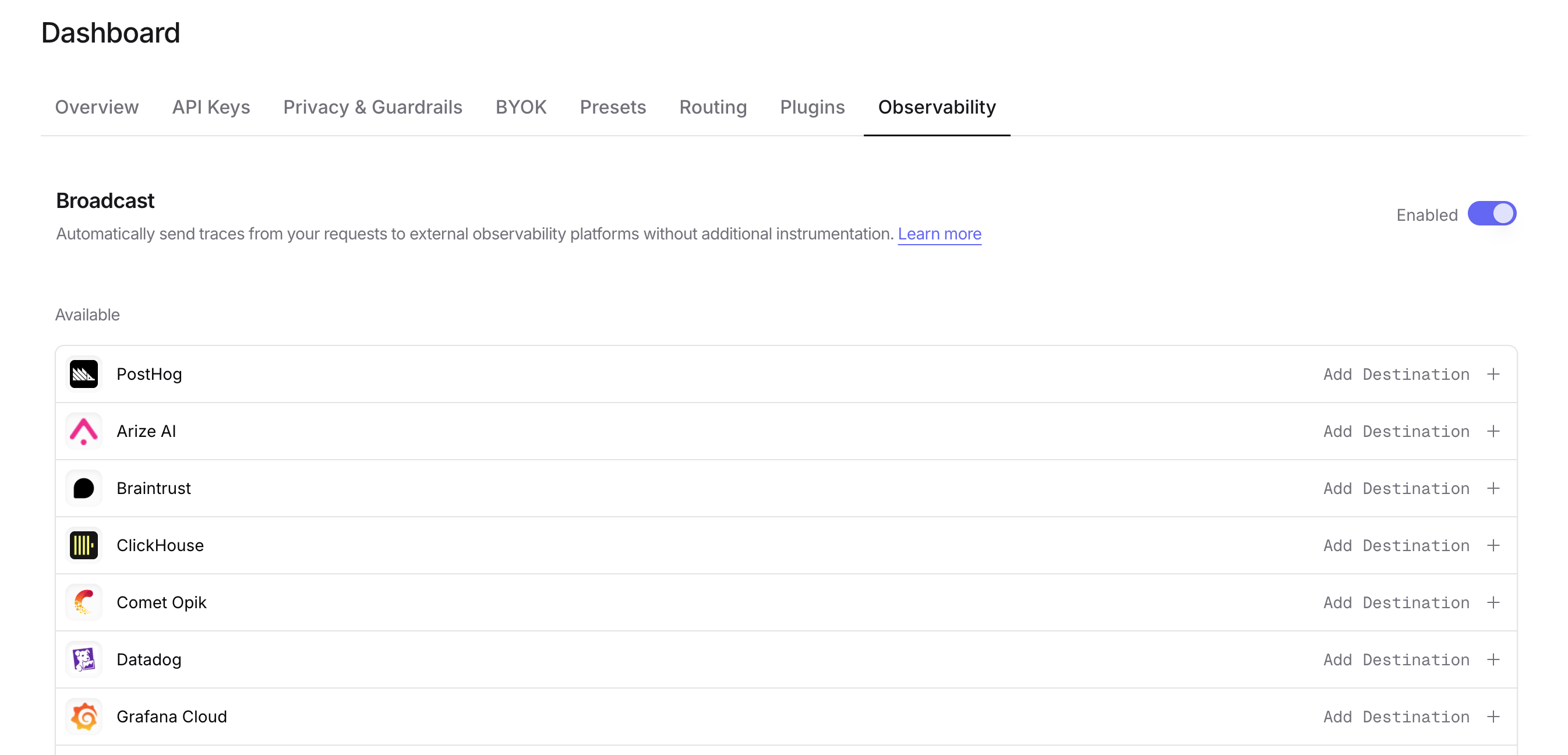
Step 3: Configure Arize AX
Click the edit icon next to Arize AX and enter:- Api Key: Your Arize AX API key
- Space Key: Your Arize AX space key
- Project Name: The name of the tracing project in Arize AX
- Base Url (optional): Default is
https://otlp.arize.com
Step 4: Test and save
Click Test Connection to verify the setup. The configuration only saves if the test passes.Step 5: Send a test trace
Make an API request through OpenRouter and view the trace in your Arize AX dashboard under the specified project.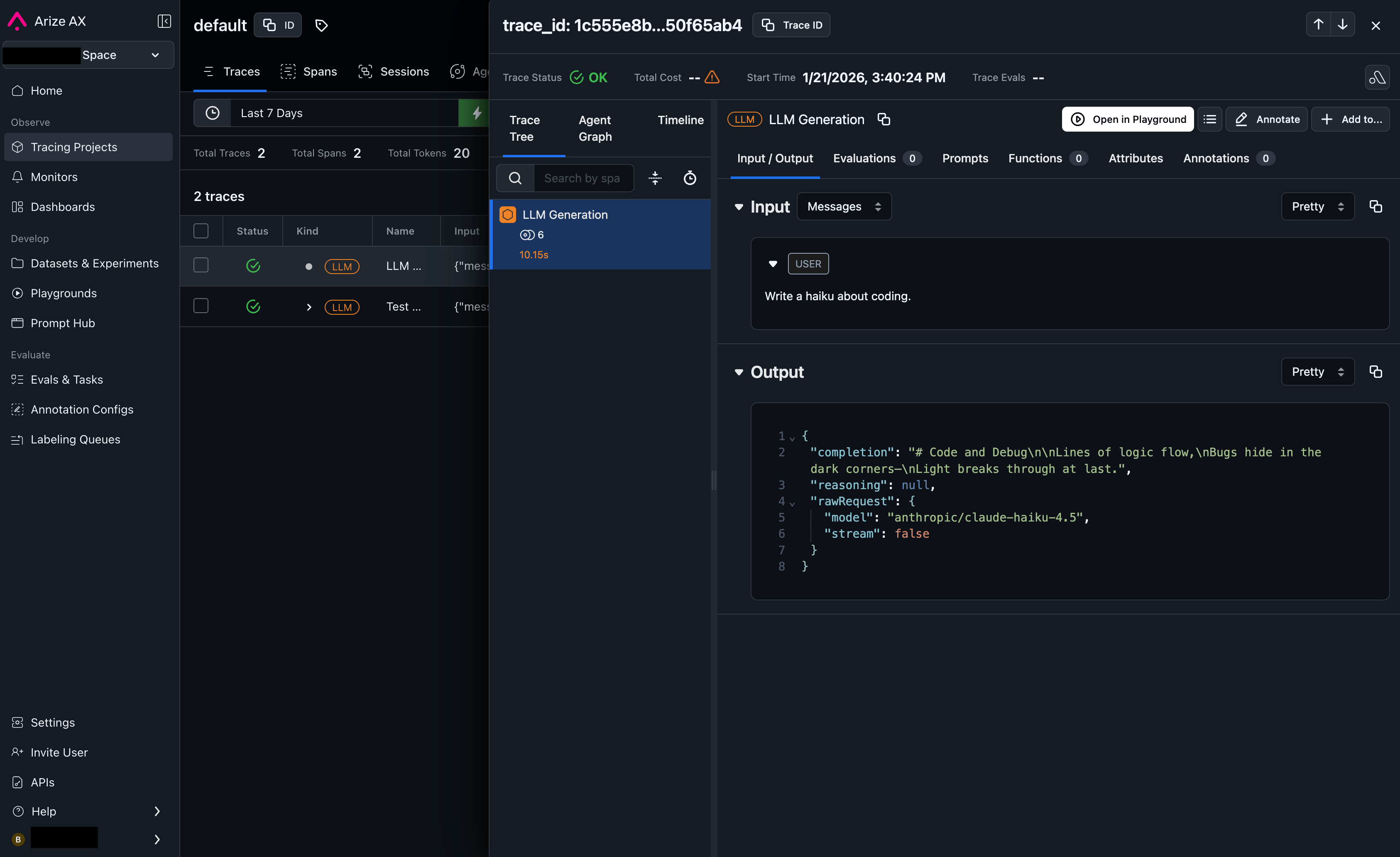
Custom Metadata
Arize AX uses the OpenInference semantic convention for tracing. Custom metadata from thetrace field is sent as span attributes in the OTLP payload.
Supported Metadata Keys
Example
Additional Context
- Custom metadata keys from
traceare included as span attributes under themetadata.*namespace - The
userfield maps to user identification in span attributes - The
session_idfield maps to session tracking in span attributes - Token usage, costs, and model parameters are automatically included as OpenInference-compatible attributes